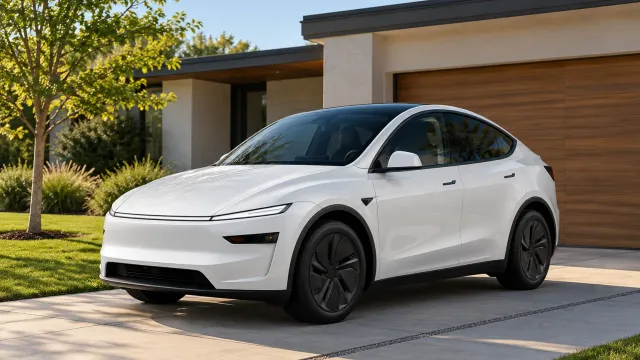
What should you know about your Tesla's first software update after delivery?
Tesla's US page says that after you take delivery, the Tesla app notifies you once your first software update is available, and that certain features may not be available until you install it. Updates have a download phase on Wi-Fi and an install phase during which you cannot drive. The page does not say when the first update arrives or how long it takes.
Who this guide is for
This guide is for the United States. It is for you if you have taken delivery of a Tesla, or have one on order, and want to know what Tesla says about the first software update. Everything we quote comes from Tesla’s Software Updates support page, which we read on November 12, 2026. We show no prices and no dates, because Tesla gives none, and Tesla can change its page, so check it yourself.
What Tesla says about the first update
Tesla’s page has a note aimed at new owners: after you take delivery of your new Tesla, you will be notified through the Tesla app once your first software update is available. It adds that it is expected that certain features may not be available before you install that first update.
So, going by the page, a feature that is missing in the first days may simply be waiting for that update. For what else to keep and check in those days, see after taking delivery of a Tesla.
How updates arrive
Tesla says vehicles regularly receive over-the-air updates over Wi-Fi. They roll out gradually, so not every vehicle receives the same update at the same time, and Tesla does not send updates to individual vehicles on request. It recommends staying connected to Wi-Fi to receive them.
To check, Tesla says to open the Software tab on the touchscreen. If an update is available, the screen shows a notice with the option to install now or schedule it for later, and a yellow download icon at the top. The Tesla app has a Software Update section on its main page too. Tesla also says you can set the car to install available updates automatically overnight.
The two phases
According to the page, an update has two phases:
- Download. The update is released over the air and prepared for installation. You must stay connected to Wi-Fi while it downloads. A green download icon shows the download has started; a yellow one means an update is available but the car is not on Wi-Fi.
- Install. The fully downloaded update is installed. As a safety measure you cannot drive during this phase, and if the car is plugged into a charger it does not charge until the install finishes.
Tesla says some updates can take several hours and the car must be parked while it updates.
Wi-Fi, driving and charging
- Wi-Fi: Tesla says the car needs a stable connection of at least three bars. With fewer, move the car closer to the Wi-Fi source or wait for a better connection.
- Driving: not during the install phase. You can drive during the download, but it may pause if the car leaves Park and loses Wi-Fi.
- Charging: the car does not charge while an update installs.
If you are still choosing where the car will charge at home, see home charging before delivery.
Version, release notes and what cannot be undone
Tesla says you can see your software version by tapping Software on the touchscreen, or in the Tesla app, where it appears under your VIN on the main page. The release notes for the latest update are under Software as well.
Two limits are stated plainly: you cannot revert the car to a previous software version, and you cannot cancel an update once the install phase has started. Tesla also says minor updates may not change anything you notice.
If the update seems stuck
Tesla says to first check the update status. If the app shows no Software Update Complete notification and more than three hours have passed since it started, reboot the touchscreen by holding the two scroll wheel buttons on the steering wheel for about 20 seconds, until the Tesla T appears. If it still fails, or if the update is stuck and not progressing, schedule a service appointment, and make sure the car is on Wi-Fi while it downloads or installs.
What Tesla’s page does not say
Tesla’s page does not say when your first update will arrive, how long it will take, or which features may be missing before you install it. It also gives no steps for the first stop at a charger, which is a different page: see your first Supercharger session.
For anything specific to your car, ask a Tesla Advisor in writing, or check the Tesla app.
Keep your own record
Before you drive off from delivery, check the car area by area and note what you find. TSL Check is the iPhone app we make for delivery day. Its checklist takes you around the car with a photo and a note on whatever you find, and a report you can keep with your order paperwork (how it works). For the day itself, see the delivery checklist.
It keeps your photos on your iPhone and has no connection to your order, appointments or payments, so it cannot install or schedule a software update for you.
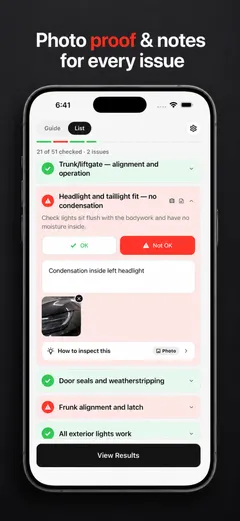
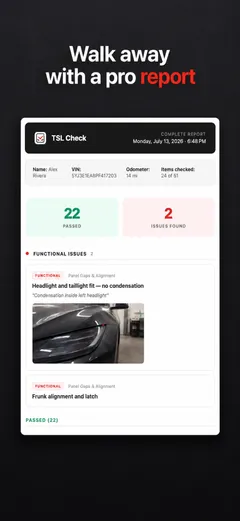
Whatever you find at delivery, ask the advisor to record it before you sign, and keep a copy.
Frequently asked questions
When does my new Tesla get its first software update?
Tesla's Software Updates page, which we read on November 12, 2026, says that after you take delivery you will be notified through the Tesla app once your first update is available. It also says updates roll out gradually, so not every vehicle gets the same update at the same time, and that Tesla does not send updates to individual vehicles on request.
Can I use all the features before the first update?
Tesla says it is expected that certain features may not be available before you install your first software update. The page does not list which features, so ask your Tesla Advisor in writing if one matters to you.
Can I drive while the update installs?
No. Tesla says that as a safety measure you cannot drive during the install phase, and that the car does not charge while an update installs. You can drive during the download phase, although the download may pause if the car loses its Wi-Fi connection after being taken out of Park.
What Wi-Fi does the car need?
Tesla says the car needs a stable Wi-Fi connection of at least three bars to download an update. If it shows fewer, move the car closer to the Wi-Fi source or wait for a better connection. A yellow download icon on the touchscreen means an update is available but the car is not on Wi-Fi.
Can I go back to the previous version or cancel an update?
Tesla says it is not possible to revert the car to a previous software version, and that you cannot cancel an update once the install phase has started.
What if the update does not seem to finish?
Tesla says that if the app shows no Software Update Complete notification and more than three hours have passed, you can reboot the touchscreen by holding the two scroll wheel buttons on the steering wheel for about 20 seconds until the Tesla T appears. If that does not work, schedule a service appointment.