How do you add a Tesla to the Tesla app, and how do you remove one?
Tesla's US page says a car bought through Tesla is added to the Tesla app automatically, while one bought from a third party must be claimed: menu, My Products, Add Product, then the VIN, documents and owner information. Tesla says the request can take up to 48 hours. Removing a car also cancels its paid subscriptions. The page gives no prices.
Who this guide is for
This guide is for the United States. It is for you if you have a Tesla, have one on order, or are thinking of buying a used one, and want to know what Tesla says about adding or removing a car in the Tesla app. Everything we quote comes from Tesla’s support page “How to Add or Remove Vehicles in the Tesla App”, which we read on November 16, 2026. We show no prices, because the page gives none, and Tesla can change its page, so check it yourself.
Ownership and drivers are two different things
The page opens by saying that when you purchase a Tesla from a third party, you must add the vehicle in the Tesla app to claim ownership and get access to features like Supercharging and roadside service. It then separates two things: transferring ownership is different from adding a driver. You can add up to five drivers to your vehicle at any time in the app. Transferring ownership gives the new owner access to all the features of the app and removes the previous owner’s vehicle information and access. Tesla adds that each vehicle can have only one owner and one Tesla Account at a time.
If you bought through Tesla
The page says the process depends on how you purchased the vehicle. If you purchased it through Tesla, it will be automatically added in the Tesla app. In the text we read, the page does not say what to do if a car bought through Tesla does not appear in the app, so ask your Tesla Advisor in writing if that happens to you.
If you bought from a third party
Then you must claim ownership. The page says that, if needed, you should contact the previous owner to approve the ownership transfer request. Before you start, it says to make sure you have the vehicle, access to Wi-Fi and the latest version of the Tesla app. The steps on the page:
- Open the Tesla app.
- Tap the menu in the top-right corner.
- Tap My Products, then Add Product.
- Follow the prompts.
A note says businesses can claim ownership of a third-party purchase by following the same steps. You will be asked to enter the vehicle identification number (VIN), upload documents and submit owner information. Once the request is complete, Tesla says it can take up to 48 hours for the vehicle to be added to your app.
What Tesla asks you to upload
The US page lists acceptable forms. For personal identification: a photo of a driver’s license, of a passport or of a state identification. For proof of ownership: proof of temporary registration, a photo of the registration, of the title or of the bill of sale. If a business will be the owner, it lists a business card, a company license or a DBA document. For a Certified Pre-Owned vehicle, the page says you must create a Tesla Account and upload one form of personal identification and one form of proof of ownership. Once your documents and ownership are verified, the ownership is transferred to you in the app.
If the request is not completed
The page has questions for this. It says a transfer may not be completed because of incomplete or incorrect documentation, verification issues or pending action from the previous owner. If you can reach the previous owner, it says to ask them to approve the request. If you cannot, Tesla says it will review your request and complete the transfer or contact you. If the car is in Valet Mode, the page says that if you know the PIN you can turn it off on the touchscreen: tap Controls, tap the driver profile icon next to Valet and enter the 4-digit PIN. If you do not know the PIN, it says to contact Customer Support.
Removing a car or transferring it to a new owner
The page says you can remove a vehicle if you no longer own it. It warns that removing a vehicle cancels your paid subscriptions, and that benefits earned or associated with your Tesla Account will no longer be active and cannot be restored. It tells you to make sure you no longer own the car, or no longer need access to it, before you remove it. The steps: open the app, tap the menu, tap My Products, tap the vehicle, tap Remove or Transfer Ownership and follow the prompts. Both owners get an email when the process is complete. Tesla says Supercharging credits, upgrades, subscriptions and some other features may not be transferable, and not to transfer ownership to a new driver unless you no longer own the car.
Other countries differ
The pages we read for Germany, Spain, France, Korea and Turkey keep the same structure, but they say it can take three to five days, or three to five working days, instead of 48 hours. In the text we read, they do not list accepted documents and have no note for Certified Pre-Owned vehicles. If you live elsewhere, read your own country’s page.
What Tesla’s page does not say
In the text we read, the page gives no prices. It does not say what to do if a car bought through Tesla is missing from the app, how long a previous owner has to respond, or exactly which credits and features carry over to a new owner. For those, ask a Tesla Advisor in writing.
Our suggestions
These are our suggestions, not Tesla’s. If you buy a used Tesla from a third party, start the claim as soon as you have the car and ask the seller to be ready to approve the request, and keep the documents you will upload together. If you sell yours, check what you will lose before you remove it. For the first days with a used car, see your first week with a used Tesla. Once the car is in the app, roadside assistance and your first Supercharger session are two of the things the page says the app unlocks.
Keep your own record
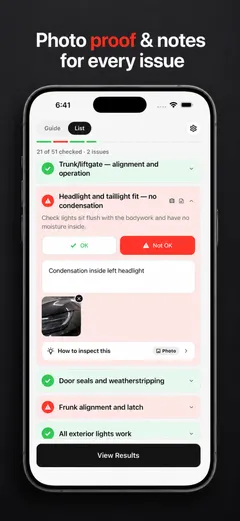
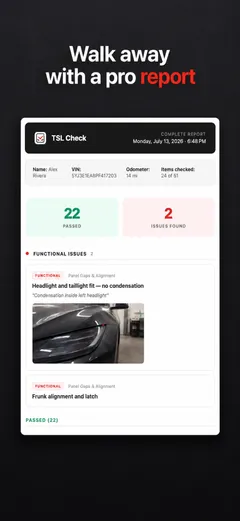
Before you drive off, go through the car area by area and note what you find. TSL Check is the iPhone app we make for delivery day. Its checklist takes you around the car with a photo and a note on whatever you find, and a report you can keep with your order paperwork (how it works). For the day itself, see the delivery day checklist, in order, and for the first days, after taking delivery of a Tesla.
It keeps your photos on your iPhone and has no connection to your Tesla Account, so it cannot add or remove a car for you.
Whatever you find at delivery, ask the advisor to record it before you sign, and keep a copy.
Frequently asked questions
Is a new Tesla added to the Tesla app automatically?
Tesla's page, which we read on November 16, 2026, says that if you purchased your vehicle through Tesla, it will be automatically added in the Tesla app. If you purchased it through a third party, you need to claim ownership yourself.
How do I claim a car I bought from a third party?
The page says to make sure you have the vehicle, access to Wi-Fi and the latest version of the Tesla app, then open the app, tap the menu in the top-right corner, tap My Products, then Add Product, and follow the prompts. You will be asked for the VIN, documents and owner information.
Why is my ownership transfer not completed yet?
Tesla lists three possible reasons: incomplete or incorrect documentation, verification issues or pending action from the previous owner. If you can contact the previous owner, the page says to ask them to approve the request. If you cannot, it says Tesla will review the request and complete the transfer or contact you.
Can I charge the car while my claim is under review?
The page says yes. While the request is in progress it names Destination Charging, a Wall Connector, a Mobile Connector and third-party charging stations. It says full access, including Superchargers, comes once the transfer is complete and the car is connected to the app.
What happens when I remove a car from the app?
Tesla says removing a vehicle cancels your paid subscriptions, and that benefits earned or associated with your Tesla Account will no longer be active and cannot be restored. It also says Supercharging credits, upgrades, subscriptions and some other features may not be transferable.
Is this the same in other countries?
The pages for other countries share the same structure but differ in details. The German, Spanish, French, Korean and Turkish pages that we read give a processing time of three to five days instead of 48 hours and do not list documents. This guide is for the United States.
Sources
- Tesla Support: How to Add or Remove Vehicles in the Tesla App (United States), consulted Nov 16, 2026 (opens in a new tab)
- Tesla Deutschland: Hinzufügen oder Entfernen von Fahrzeugen in der Tesla App, consulted Nov 16, 2026, for comparison only (opens in a new tab)
- Tesla España: Cómo añadir o eliminar vehículos en la aplicación de Tesla, consulted Nov 16, 2026, for comparison only (opens in a new tab)
- Tesla France: Comment ajouter ou supprimer des véhicules dans l'application Tesla, consulted Nov 16, 2026, for comparison only (opens in a new tab)