How do you set up a Tesla phone key, and how do you add or remove a key?
Tesla's US page says your car supports three kinds of key: phone key, key cards and key fobs. To set up the phone key, stand near the car with Bluetooth on and the latest Tesla app, open the app, select the car and tap Set Up next to Phone Key. Extra backup cards and fobs are sold in the Tesla Shop. The page gives no prices.
Who this guide is for
This guide is for the United States. It is for you if you have a Tesla on order, are about to take delivery, or already have one, and want to know what Tesla says about its keys. Everything we quote comes from Tesla’s support page “Tesla Vehicle Keys”, which we read on November 17, 2026. We show no prices, because the page gives none, and Tesla can change its page, so check it yourself.
The phone key: how to set it up in the app
The page says your vehicle supports three types of keys: phone key, key cards and key fobs, and that your phone serves as your primary key through a Bluetooth connection with the vehicle. To set up the phone key, it says to download the latest version of the Tesla app and turn on Bluetooth on your phone. Then, while standing near your vehicle:
- Open the Tesla app.
- Select your vehicle.
- Next to “Phone Key,” tap the “Set Up” button.
When you set it up, the page says you can choose to have the phone key unlock all vehicle doors or just the driver’s door. It adds that compatibility with older phones is not guaranteed. A note says 2012-2020 Model S and 2015-2020 Model X do not support phone key.
If the automatic setup does not work
The page says that if the automatic setup is unsuccessful, you may be too far from the vehicle, or the Tesla app will instruct you on how to complete the setup using your backup key card. For a phone key that is not working as expected, it lists things to confirm: no third-party Tesla vehicle apps on your phone, Location Permission for the Tesla app set to “Always Allow,” airplane and power-saving modes off, the latest app, a sign-in with your Tesla Account as owner or driver, Bluetooth on, and “Allow Mobile Access” turned on at the touchscreen under Controls and Safety. It also says to hold your phone in your hand as you approach, because some clothing or bags can block the Bluetooth connection, and that leaving your phone in a parked car prevents the doors from locking unless you turn Bluetooth off first. To start over, it says to tap “Security & Drivers,” then “Phone Key Best Practices,” then “Reset Phone Key” in the app.
Key cards and key fobs
To set up a new key card, the page says to touch Controls, Locks, Keys, then Add Key on the touchscreen, and scan the new card on the reader. For Model S, Model X and Cybertruck, the reader is at the top of the left phone charger against the center divider, with the front of the card pointing down, swiping downward. For Model 3 and Model Y, you place the card on top of the center console behind the cup holders, and remove it once it has been scanned. To confirm the pairing, you scan a card or fob that is already paired. The new key then appears in the key list, where the pencil icon lets you rename it. The page gives the same steps for a key fob.
Adding or removing a key
If you do not have a working key card or fob, the page says you can add a key with the Tesla app instead. While inside or near the vehicle, open the app, touch Security & Drivers, touch Add Key Card and scan the key on the reader. It says only the vehicle owner can do this, and that it needs Tesla app 4.29.0 or later and vehicle software 2022.40 or later. To remove a key, tap Controls, then Locks, find the key and tap the trash icon, then scan an authenticated key on the reader to confirm.
Other countries differ
The pages we read for Germany, Spain, France, Korea and Turkey keep the same structure. The difference we found is that they give the Drive Away Locking speed as 8 km/h, while the US page says 5 mph. The Turkish page does not have the sentence about buying extra cards and fobs, and the Korean page, like the US one, names Cybertruck in the reader instructions. If you live elsewhere, read your own country’s page.
What Tesla’s page does not say
In the text we read, the page gives no prices. It does not say how many keys come with a new car, how many keys a car can store, or what to do if you lose one. For those, ask a Tesla Advisor in writing.
Our suggestions
These are our suggestions, not Tesla’s. On delivery day, set up the phone key while you are standing next to the car and before you sign, and ask the advisor which keys and key cards come with it. Write the answer down. If something fails, the page’s backup key card route is a reason to make sure you leave with the card. For the full day, see the delivery day checklist, in order and pre-delivery tasks. Once the car is in your app, see how to add a Tesla to the app, and for the first days, after taking delivery of a Tesla.
Keep your own record
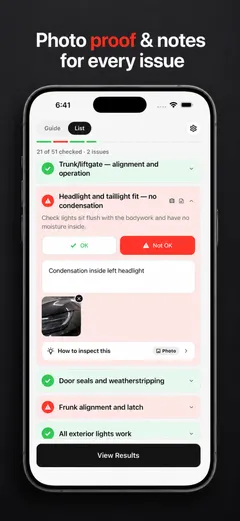
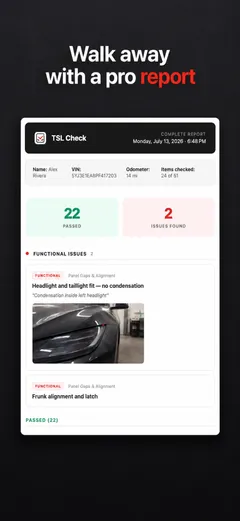
Before you drive off, go through the car area by area and note what you find. TSL Check is the iPhone app we make for delivery day. Its checklist takes you around the car with a photo and a note on whatever you find, and a report you can keep with your order paperwork (how it works).
It keeps your photos on your iPhone and has no connection to your Tesla Account, so it cannot set up a key for you.
Whatever you find at delivery, ask the advisor to record it before you sign, and keep a copy.
Frequently asked questions
What types of key does a Tesla support?
Tesla's page, which we read on November 17, 2026, says your vehicle supports three types of keys: phone key, key cards and key fobs. It says your phone is the primary key, through a Bluetooth connection with the vehicle, and that extra backup key cards and key fobs can be purchased from the Tesla Shop.
How do I set up my phone key?
The page says to download the latest version of the Tesla app and turn on Bluetooth on your phone. Then, while standing near the vehicle, open the app, select your vehicle and tap the Set Up button next to Phone Key. You can choose whether the phone key unlocks all doors or only the driver's door.
What if the automatic phone key setup fails?
The page says you may be too far from the vehicle. It also says the Tesla app will instruct you on how to complete the setup using your backup key card.
How do I add a key card if none of my keys works?
The page says you can add a new key with the Tesla app: while inside or near the vehicle, open the app, touch Security & Drivers, touch Add Key Card and scan the key card or fob on the reader. It says only the vehicle owner can do this, and that it needs Tesla app 4.29.0 or later and vehicle software 2022.40 or later.
How do I remove a key?
The page says to tap Controls, then Locks on the touchscreen, find the key in the list and tap the trash icon. When prompted, you scan an authenticated key on the card reader to confirm the deletion.
Is this the same in other countries?
The pages for other countries share the same structure but differ in details. The German, Spanish, French, Korean and Turkish pages that we read give the Drive Away Locking speed as 8 km/h instead of 5 mph. This guide is for the United States.
Sources
- Tesla Support: Tesla Vehicle Keys (United States), consulted Nov 17, 2026 (opens in a new tab)
- Tesla Deutschland: Tesla-Fahrzeugschlüssel, consulted Nov 17, 2026, for comparison only (opens in a new tab)
- Tesla España: Llaves del vehículo Tesla, consulted Nov 17, 2026, for comparison only (opens in a new tab)
- Tesla France: Clés de véhicule Tesla, consulted Nov 17, 2026, for comparison only (opens in a new tab)